

Google Just Merged Gemini With NotebookLM - Here's How to Use It

Google’s new Notebooks feature turns Gemini from a stateless chatbot into a persistent knowledge engine. A practical guide to setting it up - and what it signals about the future of AI-assisted work.
Most people treat AI chatbots like search engines with personality. You ask a question, get an answer, and start from scratch the next time you open the app. Google just made a move that quietly challenges that entire pattern. This week, the company rolled out “Notebooks” inside Gemini - a feature that integrates the organizational backbone of NotebookLM directly into Gemini’s chat interface. The result is something closer to a persistent AI workspace than a conversation thread, and it has meaningful implications for how entrepreneurs, creators, and business leaders manage knowledge at scale.
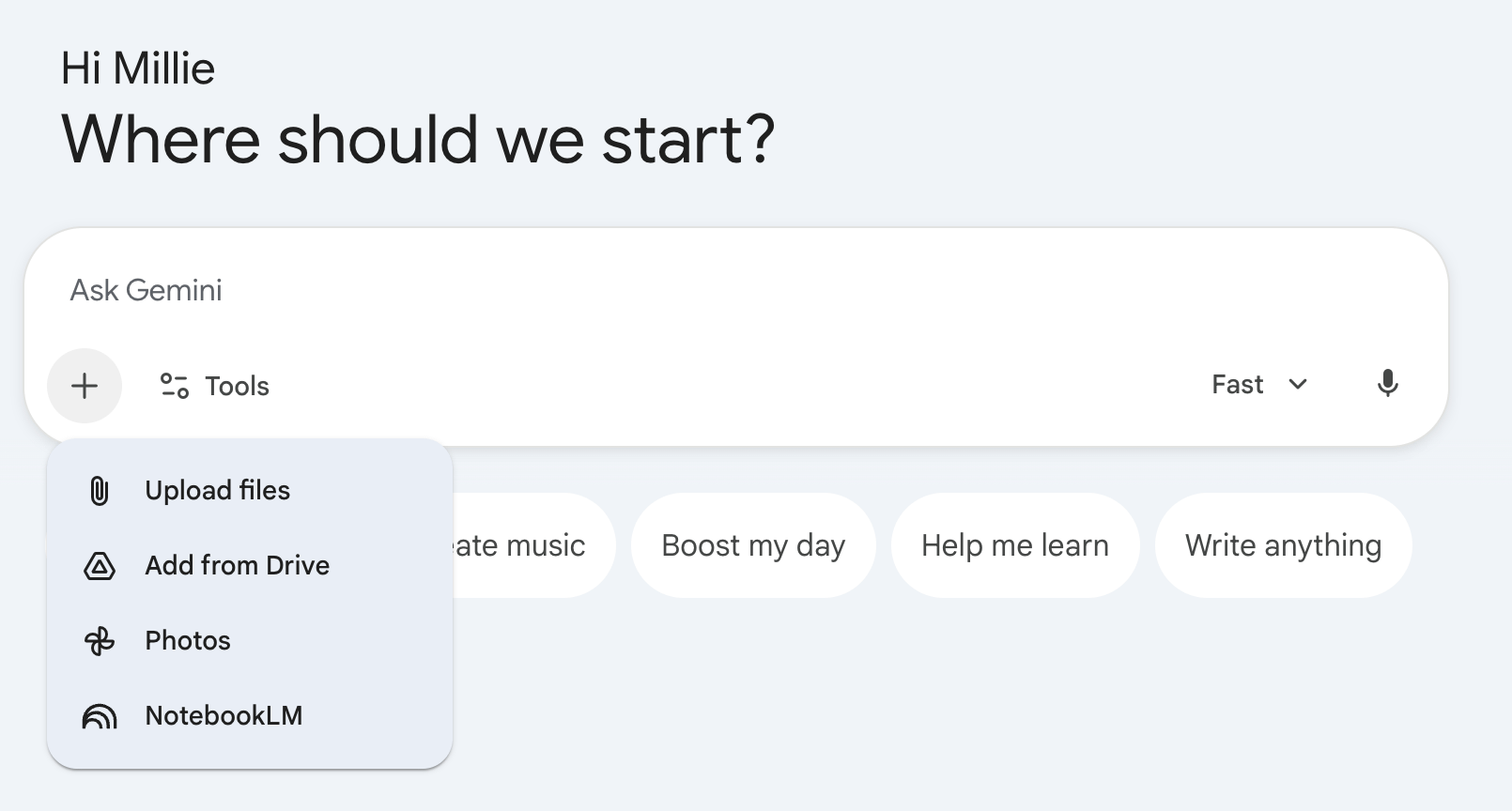
The integration is more than a cosmetic update. Notebooks sync across the Gemini app and NotebookLM, meaning any source added in one place automatically appears in the other. Google The feature has been compared to ChatGPT’s Projects, which lets users group files and conversations around a single topic - but Google’s version adds a layer that OpenAI’s doesn’t: a dedicated research tool (NotebookLM) running in parallel, with its own output capabilities like video overviews and infographics.
What Notebooks Actually Do
At its core, a Notebook is a personal knowledge base inside Gemini. Rather than asking Gemini a question in isolation, you can now group related conversations, source materials, and custom instructions into a dedicated workspace that Gemini draws from every time you interact with it. Think of it as giving the AI a briefing folder before every meeting rather than expecting it to work from memory it doesn’t have.
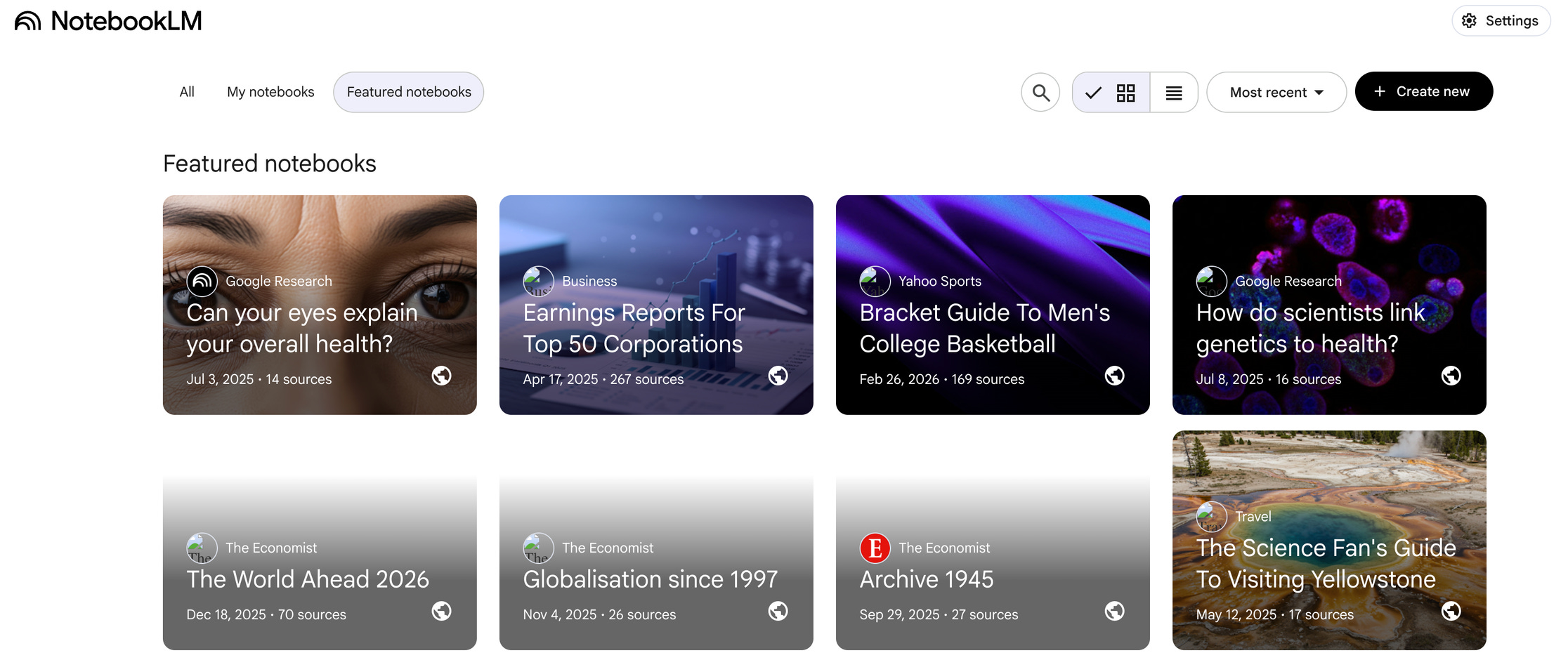
The practical difference is significant. A standard Gemini chat treats every conversation as standalone - context resets, sources disappear, and you spend the first few prompts re-establishing what you’re working on. Notebooks allow users to build on past conversations instead of starting from scratch each time.
For anyone running a content calendar, managing ongoing research, or building a long-term strategy, that shift from disposable chats to cumulative context changes the utility of the tool entirely.
How to Set It Up: A Step-by-Step Walkthrough
Getting started is straightforward, though a few configuration choices make the difference between a basic folder and a genuinely useful AI workspace.
Step 1 - Create your first Notebook. Open Gemini on the web and look for the “Notebooks” section in the left sidebar. Click “New Notebook” and give it a descriptive name tied to a specific project or topic - “Q3 Content Strategy” or “Market Entry Research” rather than something generic. The feature is currently available to Google AI Ultra, Pro, and Plus subscribers on the web, with free user access and mobile coming in the weeks ahead.
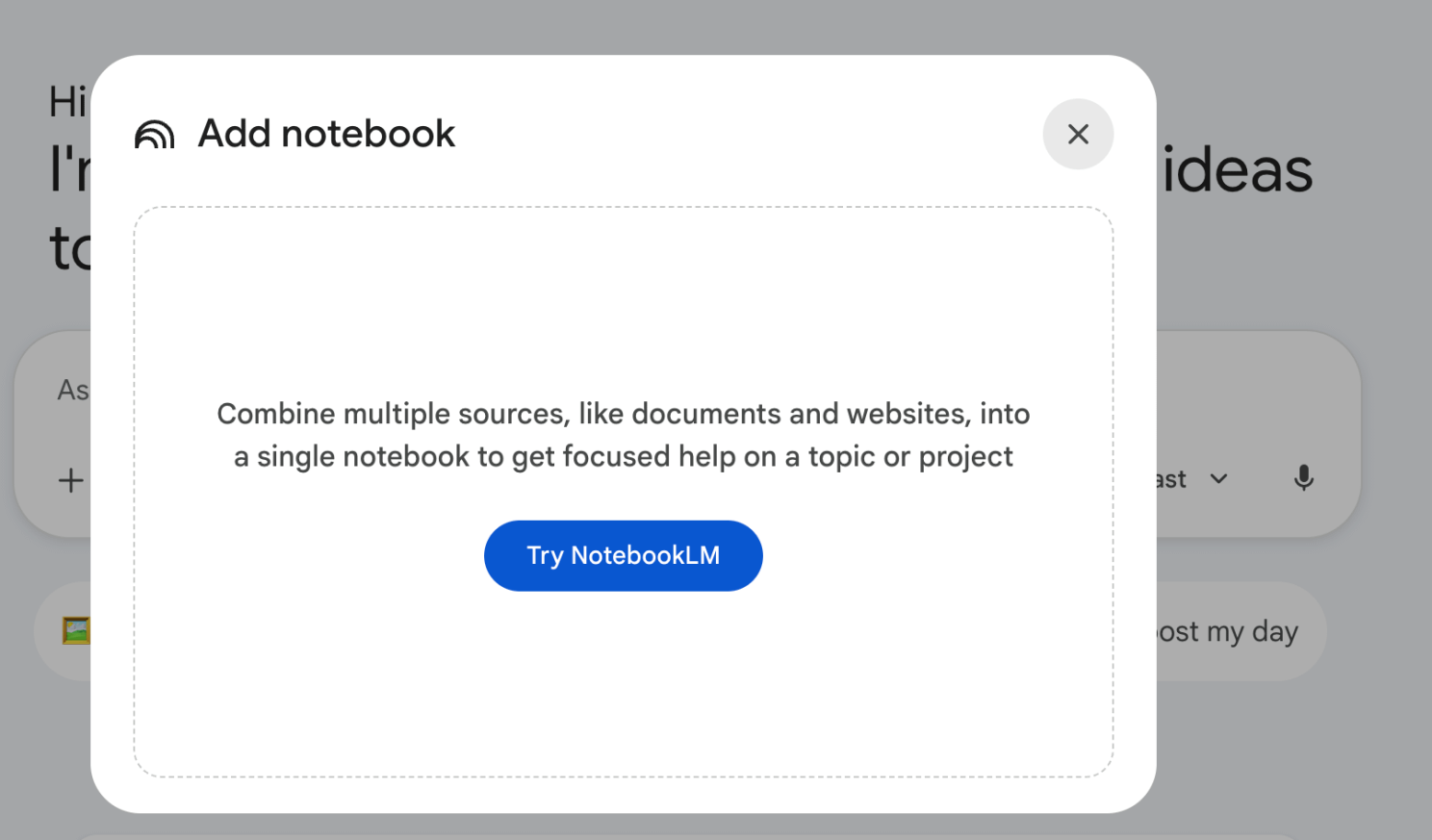
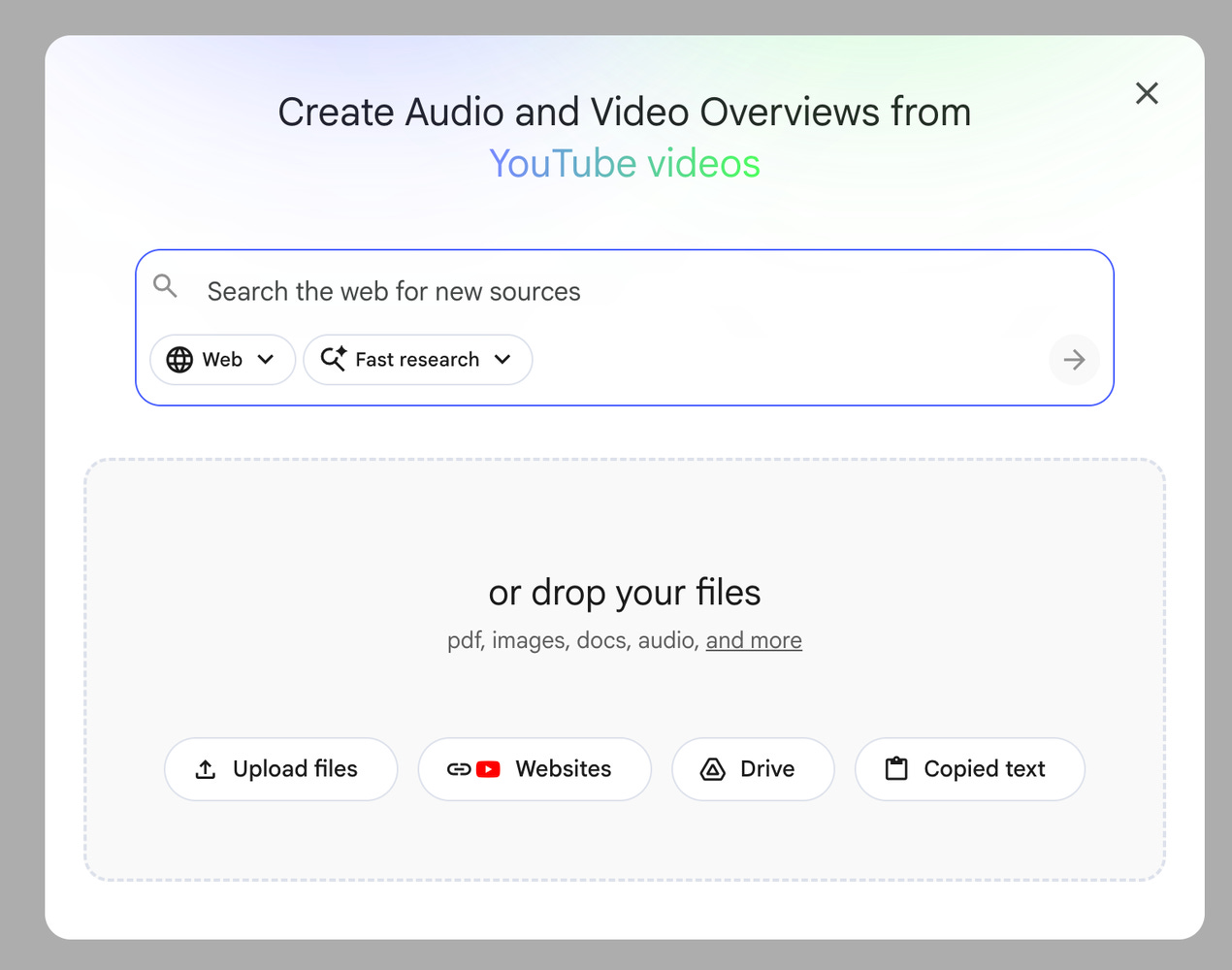
Step 2 - Add your sources. This is where Notebooks become more than a chat organizer. Click “Add Sources” and upload the materials you want Gemini to reference: PDFs, Google Drive documents, website URLs, YouTube video links, or manually pasted text. Gemini will ground its responses in these specific sources rather than relying solely on its general training data. The more targeted your sources, the more useful the outputs become.
Step 3 - Configure your settings. Open the notebook settings (three-dot menu) and enable two features that most users overlook. First, turn on Notebook Memory - this allows Gemini to reference all previous conversations within that notebook, building cumulative understanding over time. Second, set Custom Instructions to define how Gemini should behave in this specific workspace. You can specify tone, format preferences, your expertise level, or a role for the AI to adopt (for example, “Act as a strategic marketing advisor focused on customer acquisition costs”). If you’re unsure what instructions to write, Gemini can help you draft and iterate on them through a back-and-forth conversation.
Step 4 - Start working with your data. Ask questions and Gemini will draw from your uploaded sources combined with its own reasoning and web search capabilities. This hybrid approach is one of the key differentiators - unlike standalone NotebookLM, which stays strictly within your uploaded materials, Gemini Notebooks can supplement your sources with real-time web data. For example, you could upload a competitive analysis document and then ask Gemini to cross-reference it against the latest publicly available earnings data from competitors - all within the same workspace.
Step 5 - Organize and migrate existing work. Previous Gemini chats can be moved into a notebook by selecting “Add to notebook” from the chat menu. Once moved, those conversations leave the general chat history and live inside the notebook. You can also pin up to five notebooks to your sidebar for quick access to your most active projects.
The Gemini-NotebookLM Relationship: When to Use Which
The synchronization between the two platforms is bidirectional but not symmetrical, and understanding the distinction matters for getting the most from both tools. Notebooks created in NotebookLM automatically appear in Gemini’s navigation, and changes like renaming, adding sources, or updating custom instructions sync across both apps. Gemini chats appear automatically as sources in NotebookLM. The reverse requires an extra step - NotebookLM chats must first be saved as a note and then converted to a source before they become accessible in Gemini.
In practice, the tools serve different purposes despite sharing a backend. Gemini is stronger for creative reasoning, multi-step planning, and any task that benefits from web search alongside your source material. NotebookLM excels at structured learning, rigorous inline citations, and generating visual outputs like infographics and audio overviews. The smart workflow is to build your knowledge base in either app, use Gemini for creative and strategic tasks, and switch to NotebookLM when you need academic-grade citation or visual content generation.
Why This Matters Beyond the Feature
The release formalises an integration Google began at the end of 2025 and pulls the company closer to how ChatGPT Projects and Claude Projects already operate - with persistent workspaces holding context across sessions. But Google’s version carries a structural advantage: the NotebookLM layer adds research-grade source management that neither OpenAI nor Anthropic currently match in their native interfaces.
The practical takeaway is less about which AI platform wins and more about a fundamental shift in how AI tools are evolving. The era of the stateless chatbot - where every conversation starts cold - is ending. The platforms that will matter most in the next 12 months are the ones that let you build persistent context, accumulate knowledge across sessions, and create AI workspaces that actually get smarter the more you use them. Google’s Notebooks feature is an early but significant move in that direction, and it’s worth setting up now rather than waiting for the workflow to become obvious to everyone else.
The question for anyone building a business, managing a team, or running a content operation is simple: are you still treating AI as a tool you visit, or are you building it into a workspace you inhabit?
#AI #GoogleGemini #NotebookLM #Productivity #Entrepreneurship